
How to Set Up Hyundai Bluelink Driver Profiles and Save Your Settings
Posted at Sun, Mar 29, 2026 1:51 AM
For many vehicle owners, more than one person uses the vehicle. Maybe you share the vehicle with your partner or have older children who do not have a car of their own yet. When someone else uses your car, you then have to go through the process of readjusting your settings to get them back to how you like them. Wouldn’t it be nice if you could save the settings for each driver and easily switch between them? This is where Hyundai Bluelink driver profiles in the Hyundai Bluelink system come in.
What Is Hyundai Bluelink and How It Enhances Your Drive
Hyundai Bluelink is a suite of connected vehicle features available on many newer Hyundai models. It helps drivers access key tools through their smartphone while also controlling settings through the vehicle’s infotainment system.
Popular Bluelink features include:
- Remote vehicle start
- Remote vehicle climate control
- Vehicle health reports and maintenance alerts
- Stolen vehicle recovery assistance
- Emergency situation assistance
- Valet mode
- Parental controls
- Navigation assistance
To make Bluelink even more convenient for shared vehicles, Hyundai supports driver profiles that can store preferences for each person. That way, you can switch drivers without having to reset seat position, radio presets, or climate settings every time.
Setting Up Your Hyundai Bluelink Account
To get started, create a Hyundai Bluelink account through Hyundai’s website by entering basic information such as your email address, password, and vehicle details. You will also verify your identity by receiving a confirmation code to your phone number. After verification, you’ll connect your specific vehicle to your Bluelink account.
Next, download the MyHyundai with Bluelink app and sign in. The app is available for Android and iPhone devices and makes it easier to manage features like remote start, location services, and alerts from anywhere.
How to Create and Customize Hyundai Bluelink Driver Profiles
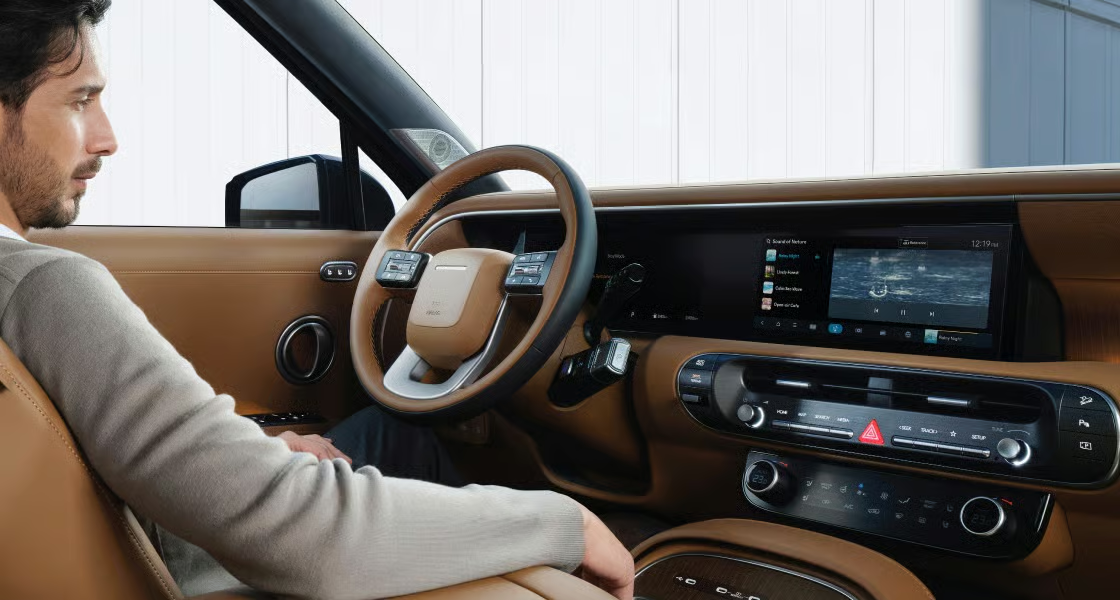
Once Bluelink is active, you can set up driver profiles directly through your vehicle’s infotainment system. Open the system menu, select “Setup,” then choose “User Profile.” If this is your first profile, the system will guide you through the initial setup, which usually takes around five minutes.
During setup, you can choose settings such as:
- Profile name and language
- Display and map preferences
- Radio presets and media settings
- Climate control preferences (depending on model)
- Seat and mirror settings (depending on model and equipment)
After the first profile is created, you can add additional profiles for other drivers. To switch profiles later, return to the “User Profile” menu and select the driver you want to use.
Syncing Preferences Across Devices and Vehicles
Bluelink settings are tied to your account, which helps if you change phones. If you upgrade your device, simply reinstall the app and sign in again to regain access to your vehicle tools and connected features.
If you own more than one Hyundai or upgrade to another compatible model, Bluelink can help maintain a consistent experience by keeping your account-based settings accessible.
Hyundai Models That Support Bluelink Driver Profiles
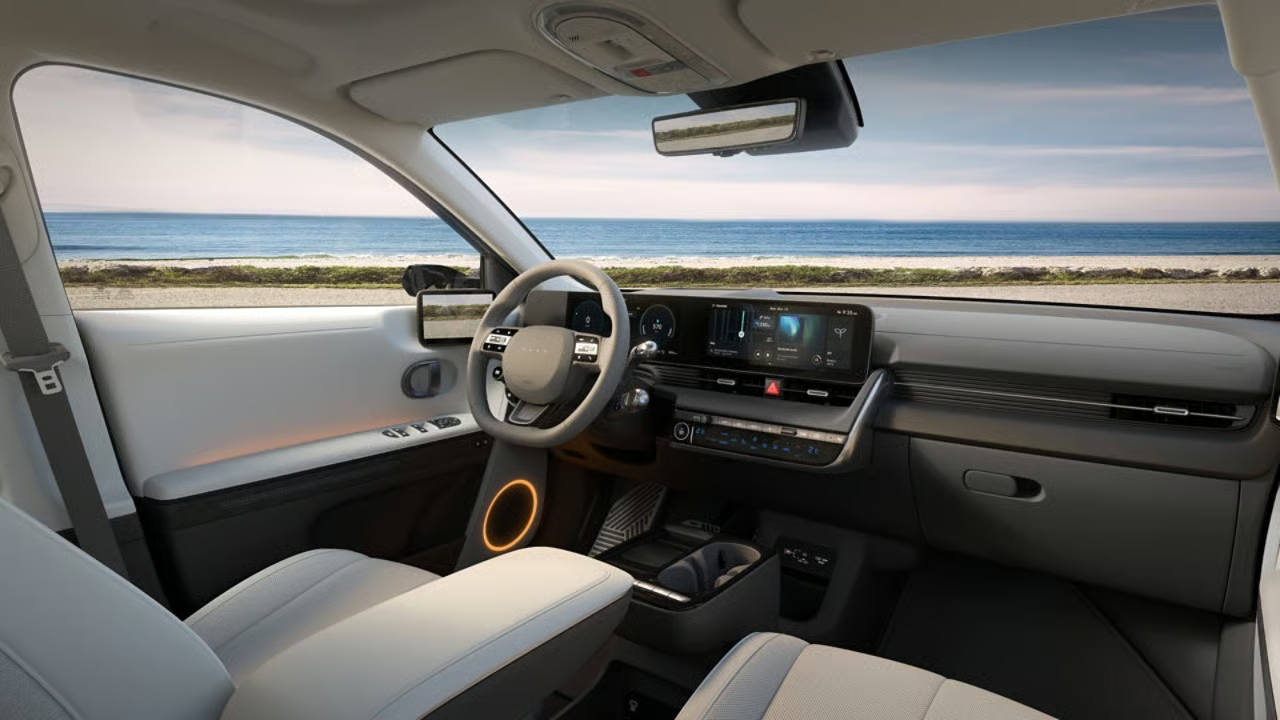
Many Hyundai models include Bluelink and driver profile functionality. Some popular options often equipped with Bluelink include:
- Hyundai Santa Fe
- Hyundai Tucson
- Hyundai IONIQ 5
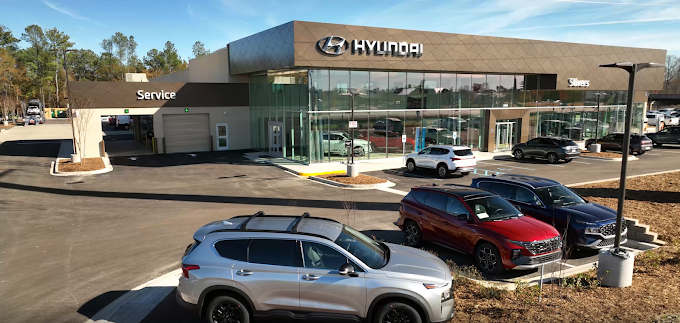
If you are not sure whether your model supports driver profiles, Stivers Hyundai of Columbia can confirm what features your vehicle includes and show you how to use them.
Troubleshooting and Managing Bluelink Settings
If Bluelink features are not working properly, try these basic troubleshooting steps:
- Make sure your vehicle has a strong cellular signal.
- Check the infotainment system for available software updates.
- Restart the MyHyundai with the Bluelink app and sign in again.
- Confirm your Bluelink subscription is active.
- Perform a head unit reset using the reset pinhole near the volume knob, pressing and holding for five to 10 seconds.
If problems continue, stop by Stivers Hyundai of Columbia for assistance.
Hyundai Bluelink Driver Profiles FAQ
What settings can Hyundai Bluelink driver profiles save?
Driver profiles can save common preferences like radio presets, display settings, and navigation preferences. Depending on your Hyundai model and trim, profiles may also store seat position, mirror settings, and climate preferences.
How do I switch between driver profiles in my Hyundai?
On the infotainment screen, open the menu, select “Setup,” then go to “User Profile.” Choose the profile you want to use, and the vehicle will apply the saved preferences associated with that profile.
Do driver profiles work with the MyHyundai with Bluelink app?
The Bluelink app helps you access remote features and connected services through your account. Driver profile switching typically happens in the vehicle’s infotainment “User Profile” menu, and availability can vary by model.
Why is my profile not saving my seat or mirror settings?
This usually comes down to vehicle equipment and trim level. Some models require a memory seat and mirror functions for those settings to be saved. If your vehicle does not have memory seating, it may only save media and display preferences.
What should I do if Bluelink profiles or features stop working?
Start by checking cellular signal strength, confirming your subscription is active, and installing any pending software updates. If the issue continues, try restarting the app and performing a head unit reset. If you still have trouble, Stivers Hyundai of Columbia can help troubleshoot and confirm system status.
Get Bluelink Assistance or Schedule a Demo at Stivers Hyundai
To learn more about the Bluelink system or any of the latest Hyundai features in the Columbia, SC area, Stivers Hyundai is here to help. One of our team members can walk you through creating driver profiles and using connected features. We can also show you Hyundai models that include Bluelink and discuss financing options if you are interested in upgrading.
Contact us today by calling (803) 788 - 6800 or sending us a message here.
Images By OEM