

How to Connect Your Phone to Hyundai Infotainment: A Quick Guide
Posted at Fri, Dec 12, 2025 5:45 PM
Hyundai Bluetooth integration is all about safety, functionality, and convenience for an enhanced in-car experience. It creates a hands-free system, thereby reducing road accidents caused by distracted driving. Bluetooth integration keeps you seamlessly connected to your gadgets and the vehicle's systems.
This step-by-step guide by Stivers Hyundai explains how to connect Hyundai Bluetooth. Visit our Hyundai service center for expert Bluetooth technology support and car repair in Columbia, SC.
Step-by-Step Instructions for Pairing Your Phone
Pairing your phone with your Hyundai Bluetooth setup is the first step to connecting your device to your car. This step registers your phone with your Hyundai's Bluetooth system, allowing them to communicate. Follow these steps to pair your phone with your car's Bluetooth system:
- Go to your phone's settings app.
- Tap Bluetooth under General or Network Settings.
- Tap the toggle next to Bluetooth to turn it on and make your phone discoverable.
- Turn on your vehicle and keep it in PARK mode.
- Press the setup button next to the LCD controls.
- Tap the Settings Menu on the multimedia screen and select the Bluetooth icon.
- When the Bluetooth Menu pops up, choose Bluetooth Connection.
- Next, tap Add New.
- Go back to your phone's Bluetooth menu and select your vehicle's name from the "nearby Bluetooth devices" list.
- If prompted for a passkey, enter the number displayed on your Hyundai's multimedia screen.
- Your Hyundai's display will confirm the connection once paired. You can also confirm pairing through your phone's Bluetooth menu.
How to Connect an iPhone to Hyundai Bluetooth
Connecting an iPhone to Hyundai Bluetooth is similar to pairing any other compatible Bluetooth device with your car. However, you'll need to turn on Bluetooth on your iPhone to connect to your Hyundai's Bluetooth. Below are the steps to pair iPhone to Hyundai Bluetooth:
- Tap the gear icon on your iPhone to go to the settings menu.
- Tap the Bluetooth icon to open the Bluetooth menu.
- Select the toggle next to Bluetooth to turn Bluetooth on and make your iPhone discoverable.
- With your Hyundai in Park mode, turn the key to "ON."
- Press the Bluetooth icon on the infotainment or multimedia screen.
- Select Add New.
- Go back to your iPhone Bluetooth menu and select your vehicle's name when it appears on your iPhone's screen below the devices list.
- Your iPhone might prompt you for a passcode.
- Enter the number that appears on your Hyundai's infotainment screen to complete the connection.
- On your iPhone, tap the "i" icon next to your Hyundai's Bluetooth name and enable Sync Contacts and manage permissions.
How to Connect an Android Phone to Hyundai Bluetooth
Once you know how to connect different Bluetooth devices, pairing Android with Hyundai Bluetooth should not be an issue. The process might differ slightly depending on your Android device. Follow these steps to pair Android to Hyundai Bluetooth:
- Tap the settings icon on your Android.
- Tap Bluetooth under General or Network Settings.
- Tap the toggle button next to Bluetooth to turn it on and make your Android discoverable.
- Turn on your Hyundai and keep it in Park mode.
- Press the Bluetooth icon on the infotainment screen and select Add New.
- Go to your Android's Bluetooth menu and select your Hyundai's name from the devices list.
- When the system requests a passcode, enter the number displayed on your Hyundai's infotainment screen.
- Once paired, go to your Hyundai's infotainment screen and press Setup.
- Select Device Connections and then tap Bluetooth.
- Select your Android from the paired devices list.
- Press the Media button and select Bluetooth Audio to enable media playback.
Playing Music and Using Hands-Free Features
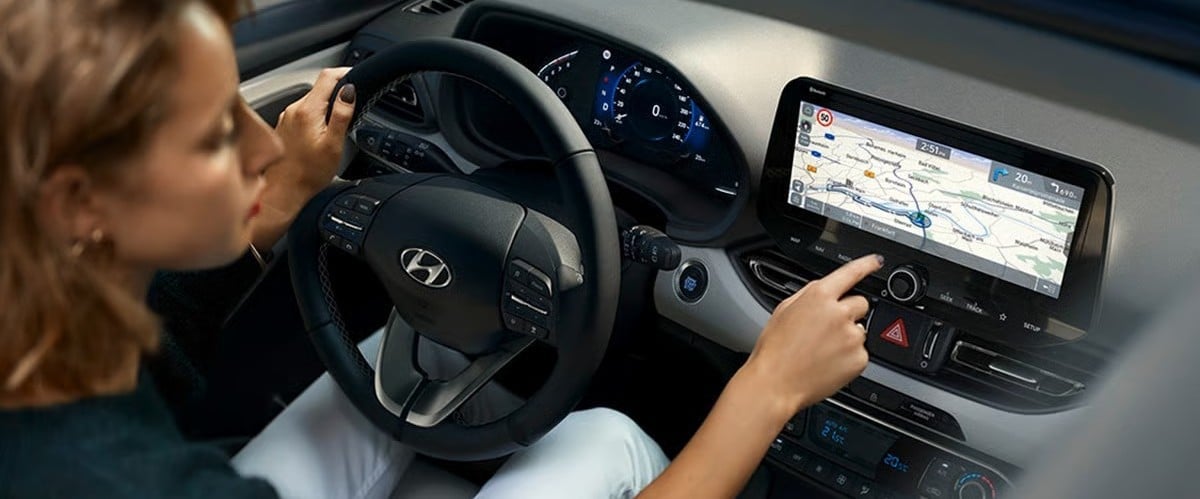
Hyundai Bluetooth allows you to stream music directly from your phone or tablet. With this feature, you can also place and receive calls and access voice commands. Follow these steps to play music and utilize hands-free features with Hyundai Bluetooth:
- Go to the Home Screen on your Hyundai infotainment system.
- Press Settings and select Phone connections.
- Next, select Phone projection.
- Choose Android Auto settings.
- Enable Android Auto.
- Turn on your Bluetooth on your Android to connect.
- A pop-up window appears on the system screen when connecting to Android Auto for the first time.
- Select Yes to accept and enable Android Auto on your smartphone.
- Press Android Auto on the infotainment screen and follow onscreen instructions to play music or use hands-free features.
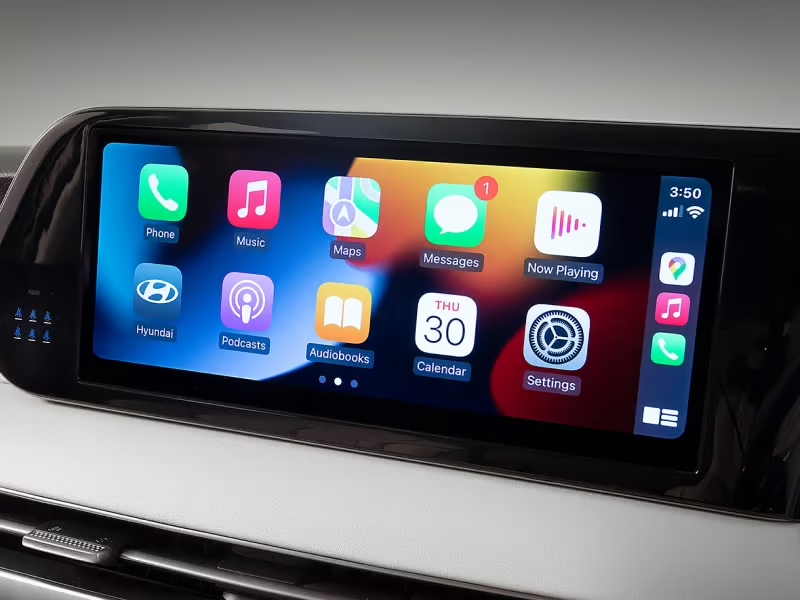
Playing music and using hands-free features on your iPhone is slightly similar to Android usage. Below are the steps for setting up your iPhone for hands-free use with Hyundai Bluetooth:
- Go to the Home Screen on your Hyundai infotainment system.
- Press Settings and select Phone connections.
- Turn on Bluetooth on your iPhone to connect.
- A pop-up message will appear onscreen when connecting to Apple CarPlay for the first time.
- Select Yes to accept and enable Apple CarPlay on your smartphone.
- Tap Apple CarPlay on the infotainment screen and follow onscreen instructions to play music or use hands-free features.
Troubleshooting Hyundai Bluetooth Connection Issues
Hyundai Bluetooth technology is not faultless. You might encounter issues such as failed pairings, dropped connections, and audio problems. Fortunately, Stivers Hyundai is here to help. We have proven solutions to common Bluetooth connection issues.
To fix these common issues, first check your device for compatibility. Your phone might not support Bluetooth in the first place, meaning you'll have to replace it. Ensure your phone is 100% charged and within range. Also, make your device discoverable to put it in pairing mode. Multiple Bluetooth pairings can also cause connection drops. Unpair your phone from other paired devices to resolve the problem. If these options don't work, restart your device or toggle Bluetooth off and on before trying again.
Get Bluetooth Assistance and Vehicle Support at Stivers Hyundai
Bluetooth technology has become a must-have feature in modern cars, and the latest Hyundai models are no exception. However, like any other tech advancement, your Hyundai Bluetooth connection might fail. Fortunately, Stivers Hyundai is just a call away at 803-788-6800.
We are your trusted resource for advanced Hyundai Bluetooth support in Columbia, SC. Contact us online or get directions to our dealership for professional Bluetooth assistance and vehicle support.
Images by OEM